
Watch Video in Youtube:
Follow our Youtube channel for more safety tips and product demos.
Pairing Button
- Enter pairing state
Power the hub with 5V smartphone charger
Short press the button on the top of the pager and hear the receiver beeping

- Short press the button

Wait for 10 seconds, the pager will stop sounding, pair finished
Download APP

"Smart Life"

"Tuya Smart"
Pairing WiFi

- Open the app and click“Add Device”.

- Enter device pairing network.
- Automatically discover the device and click “Add”

- Pairing Network Success

- Share Device

Q: How many smartphones can receive notifications at the same time?
A: The WiFi hub can be shared with up to 20 app users, so 20 smartphones can receive notifications simultaneously.
However, each app account can only be logged in on one smartphone, so each phone must be registered with a separate app account.
Q: Why can’t the smartphone app receive notifications?
A: Please check the following settings:
-
Make sure the app is running and not closed in the background. The app must stay active to receive notifications.
-
Ensure all permissions are enabled for the app, including allowing notifications even when the screen is locked.
-
Check your Battery settings:
-
Go to Battery → Battery usage, find the app.
-
Turn off Power consumption alerts (or battery optimization) for the app.
-
Tap App launch, disable Manage automatically, and enable Auto-launch and Run in background.
-
These settings help prevent the system from stopping the app and blocking notifications.
Q: How can I distinguish this app’s notifications from others?
A: Go to your smartphone’s Notification settings and assign a specific ringtone to this app. This way, you can easily recognize its notifications.
Q: Can I receive phone calls or SMS messages after the button is pressed?
A: Yes. This feature is optional and available in the app for a small additional cost. You can choose to purchase call or SMS credits (for example, 10 to 50 calls or messages), so there is no mandatory monthly fee.
Supported countries:
United States, Canada, Brazil, Mexico, Hong Kong SAR (China), Japan, South Korea, Thailand, Malaysia, Colombia, Poland, Chile, Argentina, United Kingdom, France, Germany, Spain, Russia, Belarus, Australia, Malta, Belgium, Italy, Portugal, Austria, Ireland, Netherlands, Czech Republic, Sweden, Norway, Denmark, Finland.
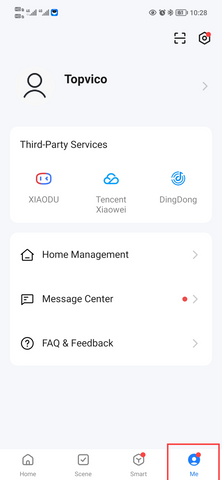
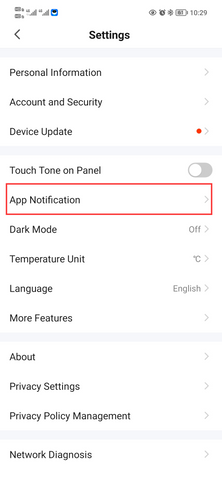
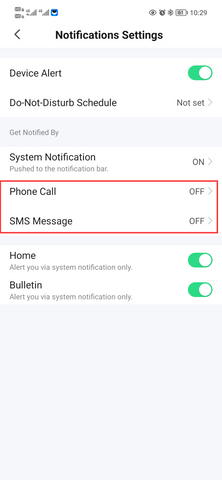
Watch video in Youtube.
- Q: (Samsung) How do I turn on notifications and lock screen notifications in the phone settings?
- Q: (HUAWEI) How do I turn on notifications and lock screen notifications in the phone settings?
- Q: (Xiaomi) How do I enable notification and lock screen notification on a Xiaomi mobile phone?
- A: How do I enable notification and lock screen notification on a Xiaomi mobile phone? (tuya.com)
Q: Need more accessories to the system?
A: Please check the page of accessories.
Or order in our Aliexpress store accessories.


